
You search for a job title on LinkedIn and get a wall of profiles. Some are right. Most are not.
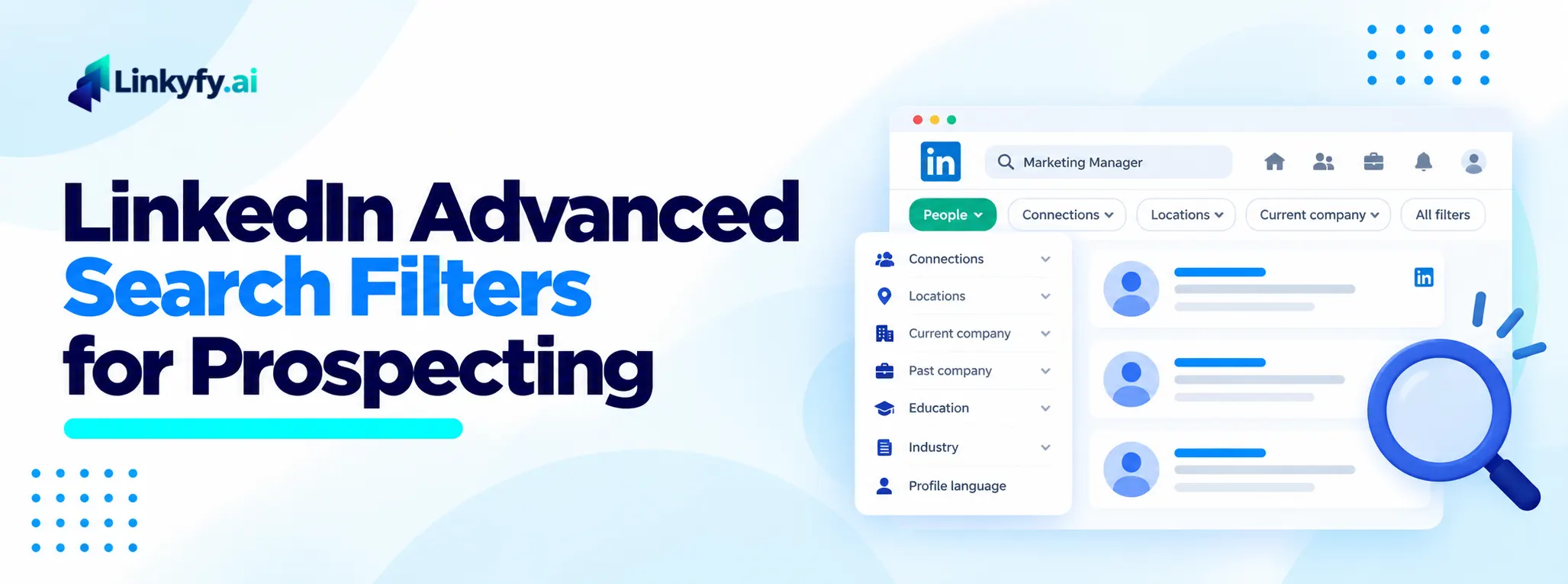
The filters on the left side of the page are how you cut that list down. They let you narrow by place, company, connection and more, without reading every profile.
But there are a lot of filters, and most people use two or three. Some save you real time. Others shrink your list so much that you find nothing.
That matters for prospecting. Your invites are limited, so every request sent to the wrong person is one you can’t send to the right one. A clean list is the cheapest way to protect them.
This guide covers the filters that matter most, the order to apply them, and four example combinations you can copy. It also shows the common mistakes and how to check your list before you message anyone.
It stays on filters. If you want help with the search box itself, see our guide to LinkedIn Boolean search for prospecting.
Let’s start with a quick overview.
A Quick Overview
| Filter | What it does | Best use for prospecting |
|---|---|---|
| Connection degree | Shows 1st, 2nd or 3rd-degree people | Start with 2nd degree, where you share a connection |
| Location | Limits by city or region | Match the area you serve |
| Current company | Finds people at named companies | Work through a target account list |
| Past company | Finds people who used to work somewhere | Reach people who left a competitor |
| Industry | Limits by industry tag | Narrow a wide search, then check |
| School | Finds people from the same school | Add a shared background |
| Profile language | Limits by the language of the profile | Match the language of your message |
What Are LinkedIn Search Filters?
Search filters are boxes that narrow a search using facts from a profile. You pick a location, a company or a connection level, and LinkedIn shows only the people who match.
They are different from the keyword box. The keyword box looks for words, and filters look for facts that people filled in on their profile.
That is also their weak spot. A filter is only as good as the profile behind it. If someone never updated their company or industry, the filter can miss them or show them in the wrong place.
How to Open and Apply the Filters
The steps below match how LinkedIn works at the time of writing. Menu names change from time to time, so look for the closest match if a label differs.
- Type a keyword, such as a job title, into the LinkedIn search bar and press Enter.
- Click People to see profiles only.
- Click All filters, or use the filter buttons at the top of the results.
- Set the filters you want.
- Click Show results.
Change one filter at a time. If you add three at once and get no results, you won’t know which one caused it.
The Filters That Matter Most
Most prospecting searches rely on a handful of filters. Here is what each one does best.
Connection Degree
This filter shows people by how close they are to you. First-degree people are already connected. Second-degree people share at least one connection with you. Third-degree people share none.
For prospecting, second degree is a good place to start. You have something in common, which can make a first message feel less cold. For what moves acceptance, see our guide on LinkedIn acceptance rate.
Location
Use location to match the area you serve. A local service business may want one city, while a software company may only need a country.
Keep it as wide as your offer allows. Setting a tiny area is one of the fastest ways to end up with a short list.
Current Company
This filter finds people at a company you name. It works well when you already have a list of target accounts.
Search one company at a time, and add a role word in the keyword box. That shows you who holds the job you care about at each account.
Past Company
Past company finds people who used to work somewhere. It is useful in two ways.
First, you can find people who left a competitor. They already know your market. Second, you can find people who came from a company you admire, which can give you a simple reason to start a chat.
Industry
The industry filter narrows a wide search to one field. It helps when a job title appears in many fields.
Treat it with care. People choose their own industry, so the tag can be broad or out of date. After you apply it, open a few profiles to see if the results look right.
School and Profile Language
These two are optional. School finds people who went to the same school as you, which gives you an easy opening line. Profile language limits results to profiles written in a language you can write in.
Use them to add a small extra step, not to build the whole search.
What Sales Navigator Adds
Sales Navigator is LinkedIn’s paid sales tool. It adds more filters than the free search, such as seniority, job function, company size, and time in the current role. It also lets you save a search.
The free filters are enough to start. The extra ones save time when your list is large or your buyer is hard to pin down. Our guide on whether Sales Navigator is worth it helps you decide.
A Simple Order for Applying Filters
A good search is built in layers. This order keeps it simple.
- Start with People and a location. This gives you a base list in the right area.
- Add role words in the keyword box. Use the exact titles you sell to. See our Boolean search guide for how to group them.
- Add connection degree or company. This narrows the list to people you can reach.
- Check the first ten results. If most are wrong, remove a filter or change the words, then check again.
Stop as soon as the list looks right. Extra filters rarely make a good list better.
Four Filter Combinations to Copy
Use these as starting points. Change the roles, places and companies to match your buyer.
| Who you want | Filters to set |
|---|---|
| Founders of small agencies in one city | Location, plus the keywords founder or owner and agency |
| Sales leaders at software companies | Industry, plus the keyword head of sales, with 2nd degree |
| People who left a competitor | Past company, plus the keyword for the role |
| Alumni who lead a team | School, plus the keyword for the role, with 2nd degree |
These are examples, not tested results. What you find depends on your market and on how people write their profiles.
Common Mistakes
Most filter problems come from five habits.
- Too many filters at once. Each one removes people. Add them one at a time.
- Trusting the industry tag. It is set by the person, so check a few profiles before you rely on it.
- Skipping connection degree. A search with no degree filter mixes people you could reach easily with people you can’t.
- Never checking the results. Open the first ten profiles. It takes two minutes and shows you if the list is right.
- Treating a match as a buying signal. A filter tells you who someone is, not whether they are ready to talk.
For that last one, the fix is a second look at timing. Our guide on LinkedIn buying signals shows what to look for.
How Many Results Can You See?
LinkedIn limits how many results you can view in a search, and the limit depends on your account type. Numbers you see online vary a lot, so don’t plan around any one of them.
If your search hits the limit, split it into smaller ones. Run one search per city, per company, or per connection degree. Smaller searches are also easier to check.
What Filters Can't Do
Filters are a good first cut, but they have limits.
- They can’t show timing. They don’t tell you who is active or who just changed jobs.
- They can’t tell you if someone is the right buyer. Our guide on how to qualify LinkedIn leads before you message them covers the checks to run next.
- They don’t send anything. A list is not a campaign. Before you start sending, read our guide on LinkedIn limits and safe outreach volume.
Filters Set, Campaign Ready: Linkyfy for Prospecting
Once your filters return the right people, the next job is reaching out.
Set your filters in LinkedIn, then copy the URL from your browser and give it to Linkyfy. Linkyfy identifies which prospects are worth reaching out to. It then writes each LinkedIn message from the prospect’s real profile.
Daily actions stay capped at 15 to 20, with randomized delays. You can review the list before you launch.
FAQs on LinkedIn Advanced Search Filters
What are LinkedIn advanced search filters?
They are boxes that narrow a search by facts on a profile, such as location, company, industry and connection level. They help you find a smaller, more relevant group of people.
Which LinkedIn search filters are free?
The common free people filters include connection degree, location, current company, past company, industry, school and profile language. LinkedIn can change what is available, so check your own account.
What is the best filter for finding decision makers?
There is no single best one. Start with the job title in the keyword box, then add location and company or connection degree. Sales Navigator adds seniority and job function filters, which help here.
Are the filters different in Sales Navigator?
Sales Navigator has more of them, such as seniority, job function, company size and time in role. It also lets you save a search.
How many results can I see in a LinkedIn search?
LinkedIn limits the number, and the limit depends on your account type. If you reach it, split your search into smaller ones by city, company or connection level.
Should I use filters or Boolean search?
Use both. Filters narrow by facts on the profile, and Boolean search sharpens the words you type in the keyword box. Start with filters, then add a Boolean string if the list is still too wide.