
You type “head of sales” into LinkedIn and get thousands of results. Many of them are the wrong people.
Some are students or consultants. Some held the role years ago. Others work at companies that are far too small, or far too large, to buy from you.
That is not a LinkedIn problem. A plain keyword search looks for your words anywhere on a profile, so it casts a very wide net. The more general your words, the more noise you get back.
Boolean search fixes that. It is a handful of words and symbols that tell LinkedIn exactly who to include and who to leave out.
For prospecting, this matters more than it first seems. Your invites are limited, so every request sent to the wrong person is one you can’t send to the right one. A good search is the cheapest way to protect them.
You don’t need to know any code to do it. Five simple rules cover almost every search a prospector runs. And once you build a good string, you can keep it in a note and reuse it every week, changing only a word or two for each new group of buyers.
This guide covers those rules, a four-step way to build a search string, and copy-and-paste examples for sales roles. It also shows the common mistakes and how to check your results before you message anyone.
Let’s start with a quick overview.
A Quick Overview
| Operator | What it does | Example |
|---|---|---|
| AND | Both words must appear | marketing AND director |
| OR | Either word can appear | CEO OR founder |
| NOT | Leaves a word out | manager NOT assistant |
| " " (quotes) | Matches the exact phrase | "head of sales" |
| ( ) (parentheses) | Groups terms together | (CEO OR founder) AND SaaS |
What Is LinkedIn Boolean Search?
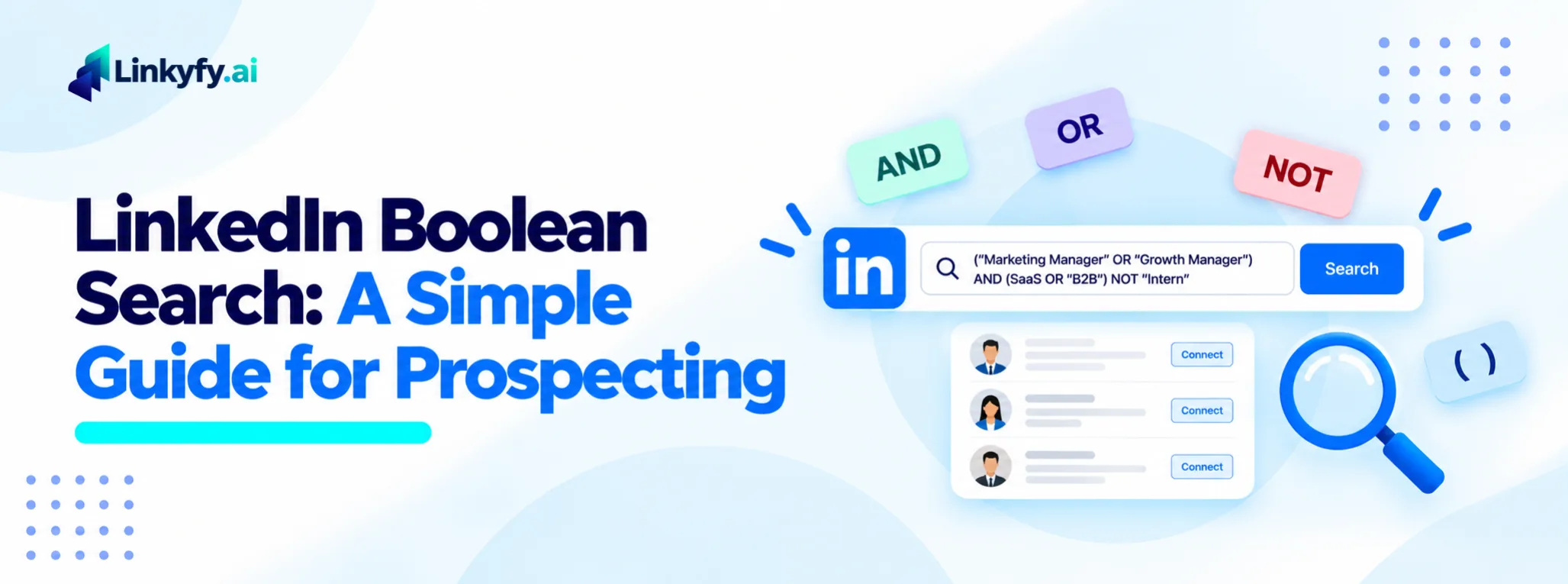
Boolean search means typing a search with operators, not just plain keywords. The operators are AND, OR and NOT, plus quotes and parentheses.
You can use it in the main LinkedIn search bar. Sales Navigator adds separate boxes for title and company, so you can use operators in each one.
Prospectors use it for one reason. It cuts out wrong profiles before you spend an invite on them. Our guide on how to qualify LinkedIn leads before you message them covers the next step, once the list is built.
The Five Rules to Remember
These five rules cover most of what you need.
- Write AND, OR and NOT in capital letters. In lowercase, LinkedIn reads them as plain words and ignores their job.
- Put exact titles in quotes.
"head of sales"finds that phrase. Without quotes, LinkedIn looks for the words anywhere on the profile. - Use parentheses around every OR list. Without them, the search can read your string in a way you didn’t plan.
- Spell out each version of a word. Don’t count on a star symbol to cover variants. Write
Director OR Directorsif you need both. - Start broad, then narrow. A long string that finds nothing teaches you less than a short one that finds too much.
Use straight quote marks. Curly quotes, which some word processors add on their own, can break an exact phrase.
How to Build a Boolean String in Four Steps
Build the string in small pieces. Add one piece at a time and check the results as you go.
Step 1: Pick the Titles
List the job titles you sell to. Put them inside quotes, join them with OR, and wrap the group in parentheses.
(“Head of Sales” OR “VP of Sales” OR “Sales Director”)
Step 2: Add the Market
Next, narrow by industry or topic. Join this group to the titles with AND.
(“Head of Sales” OR “VP of Sales” OR “Sales Director”) AND (software OR SaaS)
Step 3: Remove the Noise
Now leave out the people you don’t want. Use NOT, followed by a group.
(“Head of Sales” OR “VP of Sales” OR “Sales Director”) AND (software OR SaaS) NOT (assistant OR intern OR student)
Keep this list short. Too many NOT words can remove good people along with the bad.
Step 4: Test and Trim
Run the search and open the first ten profiles. Count how many are the right people.
If most are wrong, tighten the string. If you get very few results, loosen it by removing one group. Change one thing at a time, so you know what made the difference.
Copy-and-Paste Strings for Sales Prospecting
Use these as starting points. Change the titles and keywords to match your own buyer.
| Who you want | String |
|---|---|
| Sales leaders at software companies | ("Head of Sales" OR "VP of Sales" OR "Sales Director" OR "Chief Revenue Officer") AND (software OR SaaS) |
| Founders of small agencies | (Founder OR "Co-founder" OR Owner) AND (agency OR consultancy) |
| Marketing heads at B2B companies | ("Head of Marketing" OR "VP Marketing" OR "Marketing Director" OR CMO) AND B2B |
| Leaders who mention lead generation | ("lead generation" OR "outbound sales") AND (Founder OR CEO) |
| Operations leaders in a chosen industry | ("Head of Operations" OR "COO" OR "Operations Director") AND (logistics OR manufacturing) |
These strings are examples, not tested results. Results change with your market and with how people write their profiles.
The fourth string looks for words anywhere on the profile, not just the title. So it finds people who write about a topic. That helps when the buyer’s title varies from company to company.
Free Search vs. Sales Navigator
The same operators work in both. The main difference is where you can use them.
In the main search bar, your string applies to the whole profile. In Sales Navigator, you can also use it inside the title and company boxes, which gives you more control. It also lets you save a search. Our guide on whether Sales Navigator is worth it helps you decide if you need it.
LinkedIn limits how long or complex a string can be, and the limit depends on your account type. LinkedIn does not state it clearly, so check your own search if you get an error. Start with a shorter string and add to it.
Common Mistakes
Most Boolean problems come from five habits.
- Lowercase operators.
andandordo nothing special. Write them in capitals. - Curly quotes. Type your string in the search box, not in a document that changes the quote marks.
- OR lists with no parentheses. Group every OR list so the search reads it the way you meant.
- Too many NOT words. A long exclusion list can shrink your results to almost nothing. Add them one at a time.
- Expecting a clean title match. Profiles can include old jobs, so a title in your string may match someone who held it years ago.
For that last one, the fix is a quick look at each profile before you add it to your list.
How to Check Your Results Before You Message
A search string only finds people who match your words. It cannot tell you if they are the right buyer.
So spend a few minutes on a check. Open the first ten profiles and ask whether the person is the kind of buyer you sell to. If fewer than about half are, tighten the string. That is our rule of thumb, not an official number.
Then run the two checks on the rest: is this the right person, and is the timing right? To spot timing, our guide on LinkedIn buying signals shows what to look for.
What Boolean Search Can't Do
Boolean search is a good start, but it has limits.
- It matches words, not meaning. A profile can contain your words and still be the wrong person.
- It can’t show timing. It doesn’t tell you who is active, or who just changed roles.
- It doesn’t send anything. A list is not a campaign. Before you start sending, read our guide on LinkedIn limits and safe outreach volume.
For another way to find people, see our guide on how to find LinkedIn posts that turn into leads. It starts from what people post, not from their job titles. To build the ideal customer profile behind your strings, see our guide on B2B LinkedIn lead generation and sales strategy.
From Search to Campaign: Linkyfy for Finding the Right Prospects
Once your search returns the right people, the next job is reaching out.
Build the search in LinkedIn, then copy the URL from your browser and give it to Linkyfy. Linkyfy identifies which prospects are worth reaching out to. It then writes each LinkedIn message from the prospect’s real profile.
Daily actions stay capped at 15 to 20, with randomized delays. You can review the list before you launch.
FAQs on LinkedIn Boolean Search
What is a Boolean search on LinkedIn?
It is a search that uses the words AND, OR and NOT, plus quotes and parentheses, to include or leave out certain words. It helps you find a narrower set of people.
Does LinkedIn Boolean search work on a free account?
Yes. You can use it in the main search bar. LinkedIn limits how long a string can be, and the limit depends on your account type.
Do the operators need to be in capital letters?
Yes. Write AND, OR and NOT in capitals. In lowercase, LinkedIn reads them as plain words.
Can I use wildcards on LinkedIn?
Don’t count on it. Spell out each version of a word with OR, such as Director OR Directors.
Is Boolean search different in Sales Navigator?
The operators are the same. Sales Navigator also lets you use them inside the title and company boxes, and you can save a search.
How do I find decision makers with Boolean search?
List the titles that make the decision, group them with OR, and add your industry with AND. Then leave out roles like assistants and interns with NOT, and check the first ten results.